
Folder sections function similarly to Shift sections, but with the added flexibility of multiple layers. You can navigate a folder section using the familiar method of folders and subfolders.
Create a Folder Section
1. Select Starting Cell.
Click on the cell where you want to start your folder section.
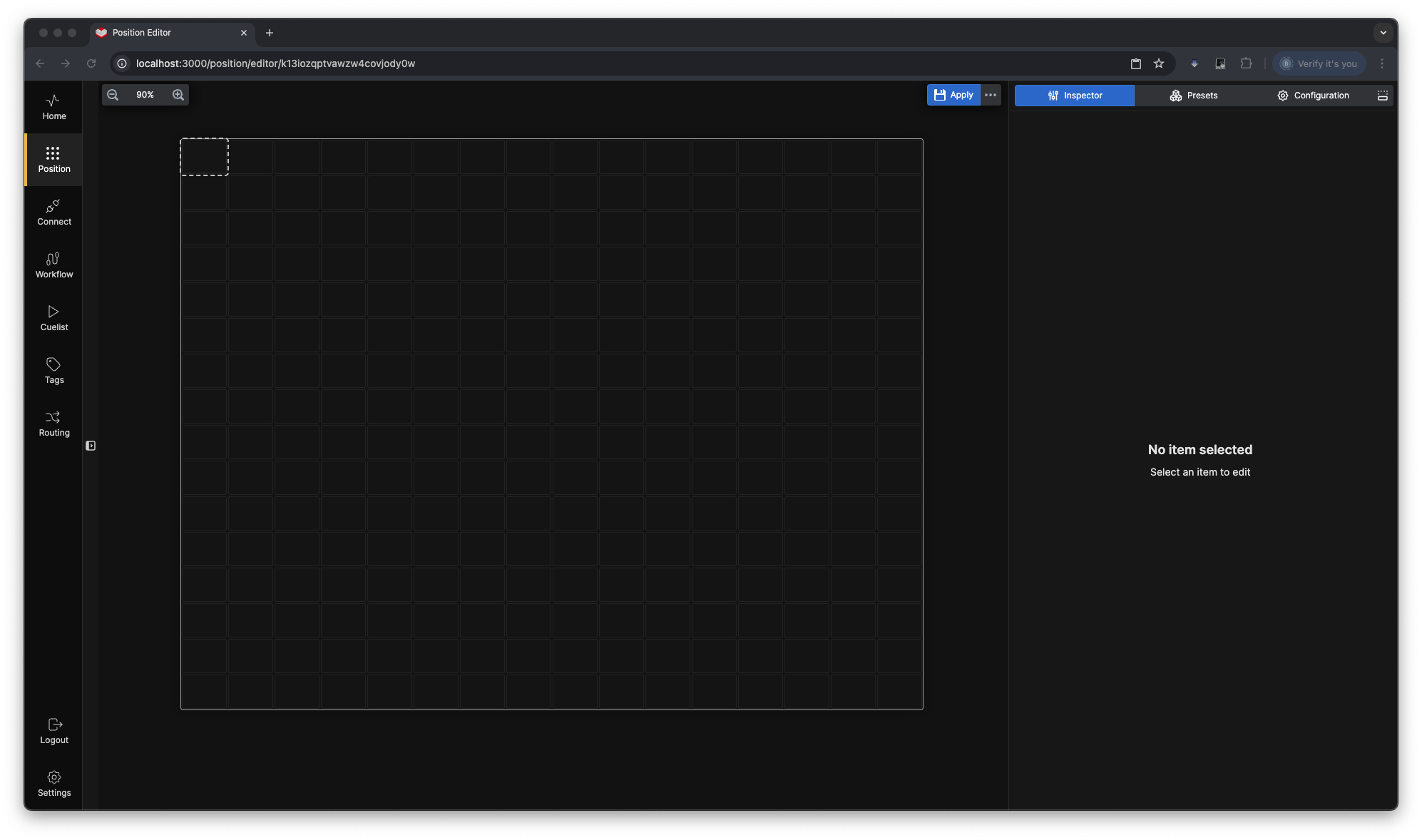
2. Define the Section Area.
Click and drag to select the cells you want to include in the folder section.
3. Convert to Folder Section.
Right-click within the selected area and choose "Folder Section" from the menu. Or press F to create a folder section.
4. The selected cells will now be converted into a folder section. The Folder section will be created with 3 folders as a starter default.
Folder Sections Inspector
Navigate to the Inspector and open the Navigation dialog.
You will see the Main and the different sub-folders listed. To add additional subfolders, click the + Add Folder button in the bottom of the Pages dialog. You can drag and drop any folder on top of another folder to make it a subfolder of that folder.
As you add pages or subfolders, a familiar hierarchy forms in the *Pages* dialog. You can:
- Rename folders.
- Change colors and icons.
- Modify the folder layout order (e.g., left-to-right or top-to-bottom).
- Adjust the return button within each folder.
- Turn off the Folder navigation buttons
- Turn off the return Button.
Additionally, you can utilize the Scroll function within subfolders to fit more buttons into the same cell area.
TIP:
You can use the internal action Set Active Page to create your own navigation